How to Set Up a VPN on Mac: The Fast App Way (and Manual Steps)
How to Set Up a VPN on Your Mac (Fast)
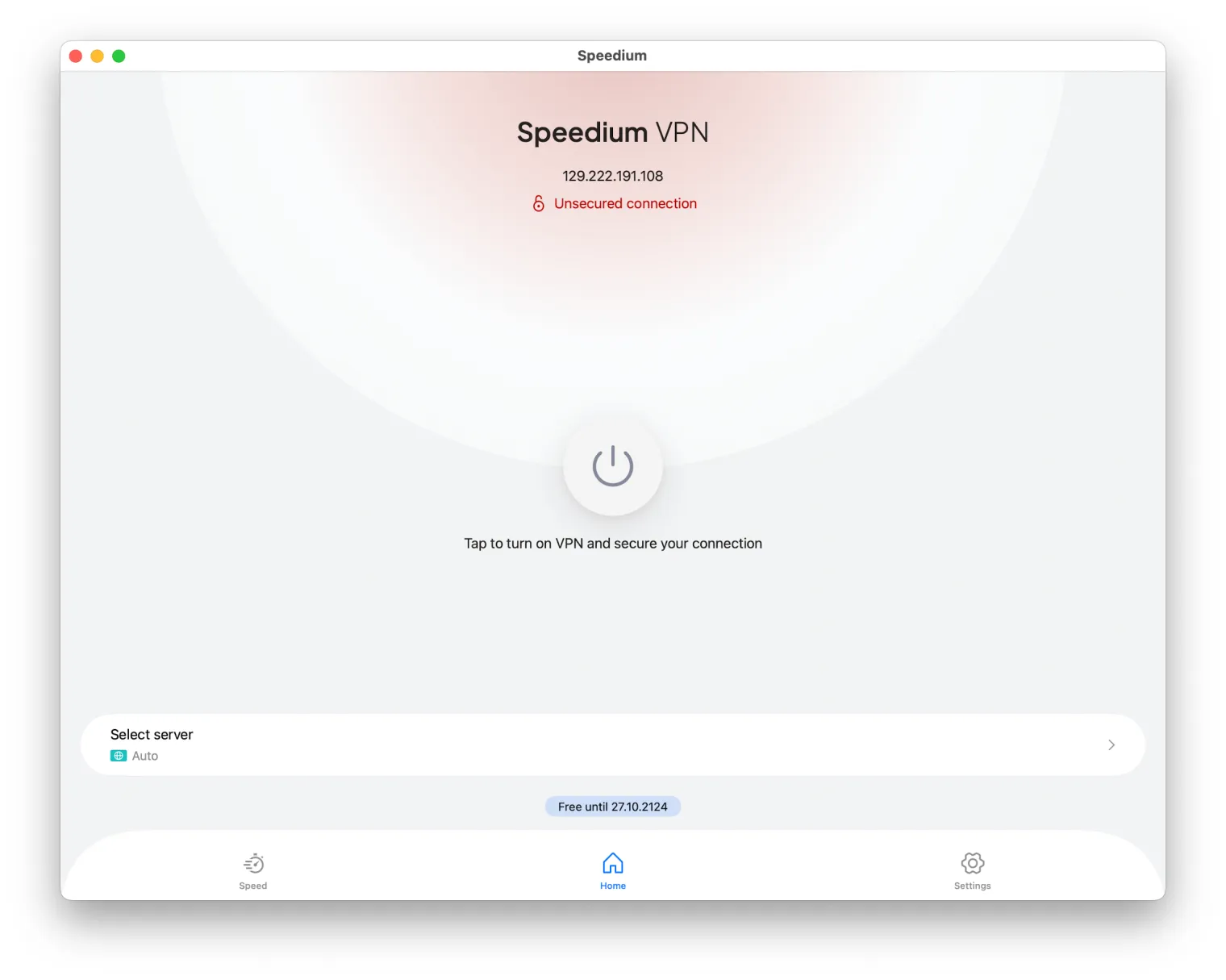
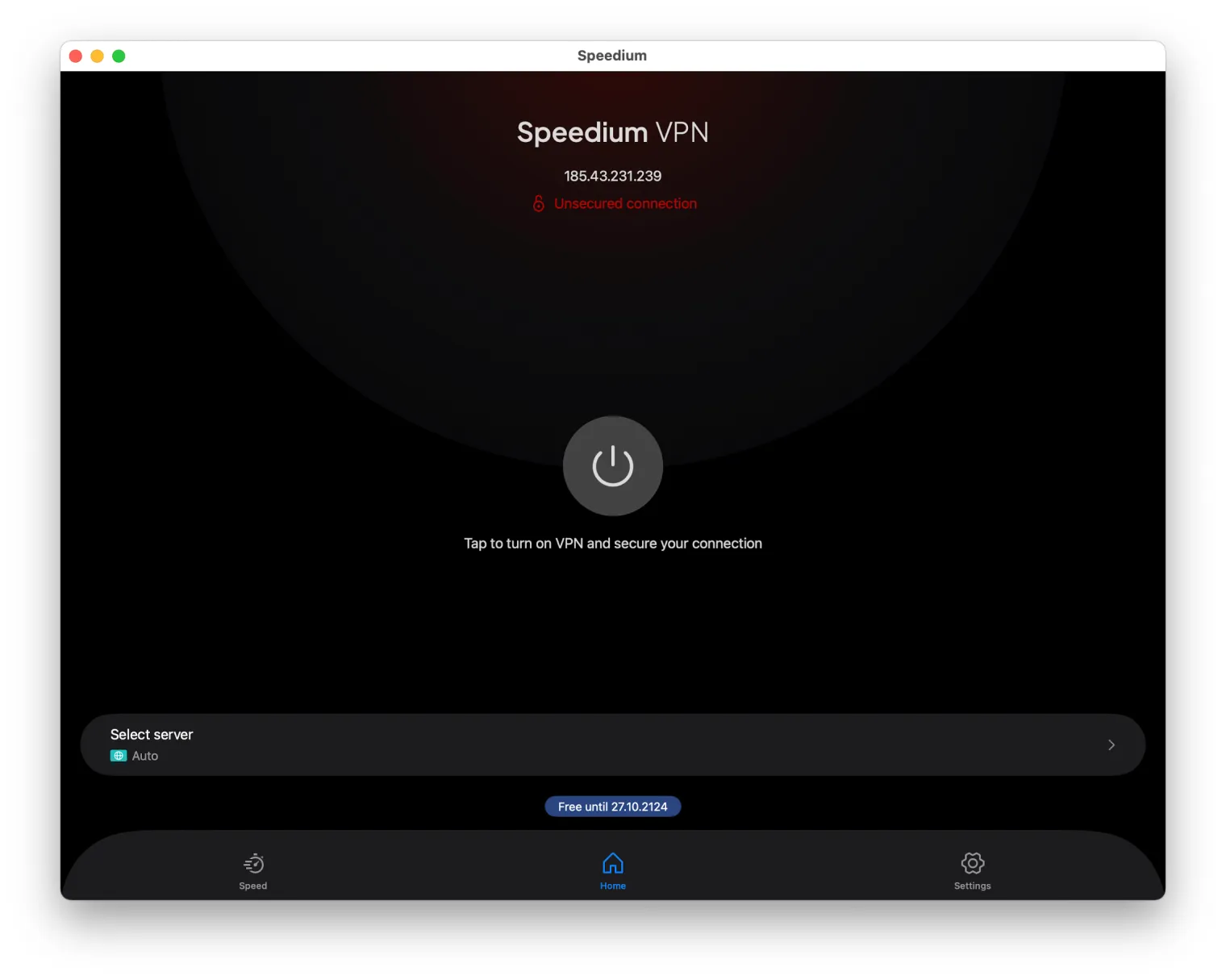
There are two ways to set up a VPN on a Mac: the app method, which is the fastest and the one we recommend, and the manual method using macOS System Settings. If you just want it working, use the app: install Speedium VPN from the Mac App Store, sign in, click Connect — you'll be protected in under two minutes.
One thing that surprises people: macOS does not come with a bundled VPN service. It includes a built-in VPN client that can run a manual configuration, but you still need a VPN provider or app to give you servers and encryption. That's where Speedium comes in — and because it's one universal app for iPhone, iPad and Mac, the same account you already use on your phone works here too.
Best part: you can try it with a genuine 7-day free trial — no credit card, no Apple Pay, no auto-billing.
Before You Begin: What You Need
Setting up a VPN on your Mac takes almost nothing to get started. Here's the short checklist:
- - A Mac running a recent macOS. The steps below show Ventura and Sonoma, where the menu is called System Settings. On older versions (Monterey and earlier) it's called System Preferences, and the layout differs slightly.
- - An Apple ID, so you can download from the Mac App Store.
- - The Speedium VPN app (free download) — or, if you're going the manual route, the VPN configuration details from your provider.
- - Admin rights on the Mac. Adding any VPN configuration requires an administrator to approve it.
- - A stable internet connection.
- - No credit card or payment method — you don't need one to start the trial.
That's it. Most people are connected before they finish their coffee.
Method 1: Set Up a VPN on Mac with the Speedium App (Recommended)
This is the path we recommend for nearly everyone. It's automatic, secure by default, and it's the same app you run on your other Apple devices.
Step 1: Download Speedium from the Mac App Store
Open the App Store on your Mac, type Speedium VPN into the search bar, and click Get, then Install. The download is free. When it finishes, Speedium appears in your Applications folder and Launchpad.
Step 2: Sign in (or start your free trial)
Launch the app. If you already have a Speedium account, sign in — everything carries over. If you're new, choose Start free trial to begin your 7-day free trial with no card required. You're not entering payment details here, because none are needed to test the service.
Step 3: Grant the VPN permission prompt
The first time you connect, macOS shows a system prompt asking permission to add a VPN configuration. This is normal and required for any VPN on macOS. Click Allow, then authenticate with Touch ID or your Mac password. Speedium handles all the technical configuration for you behind that single approval.
Step 4: Choose a server and connect
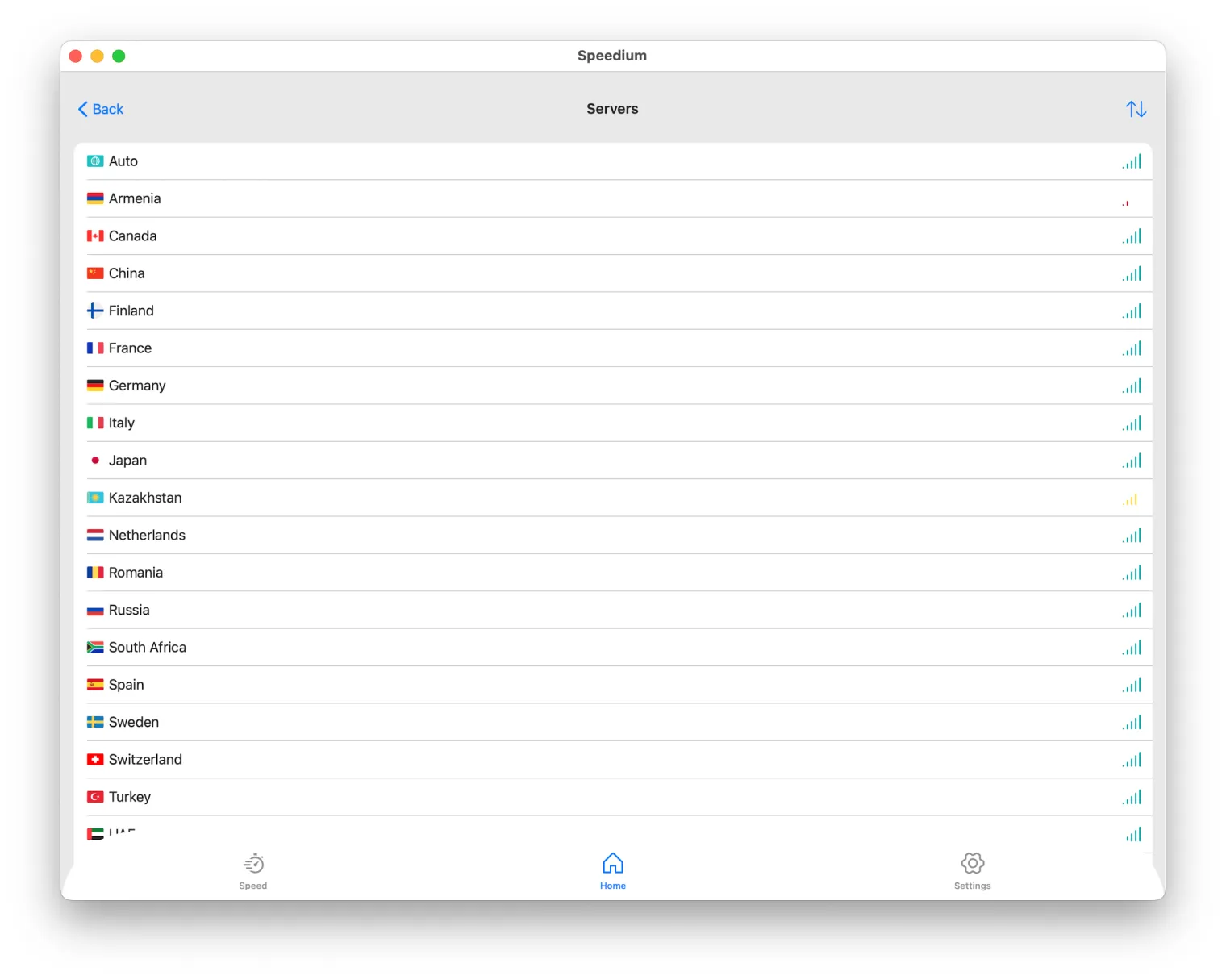
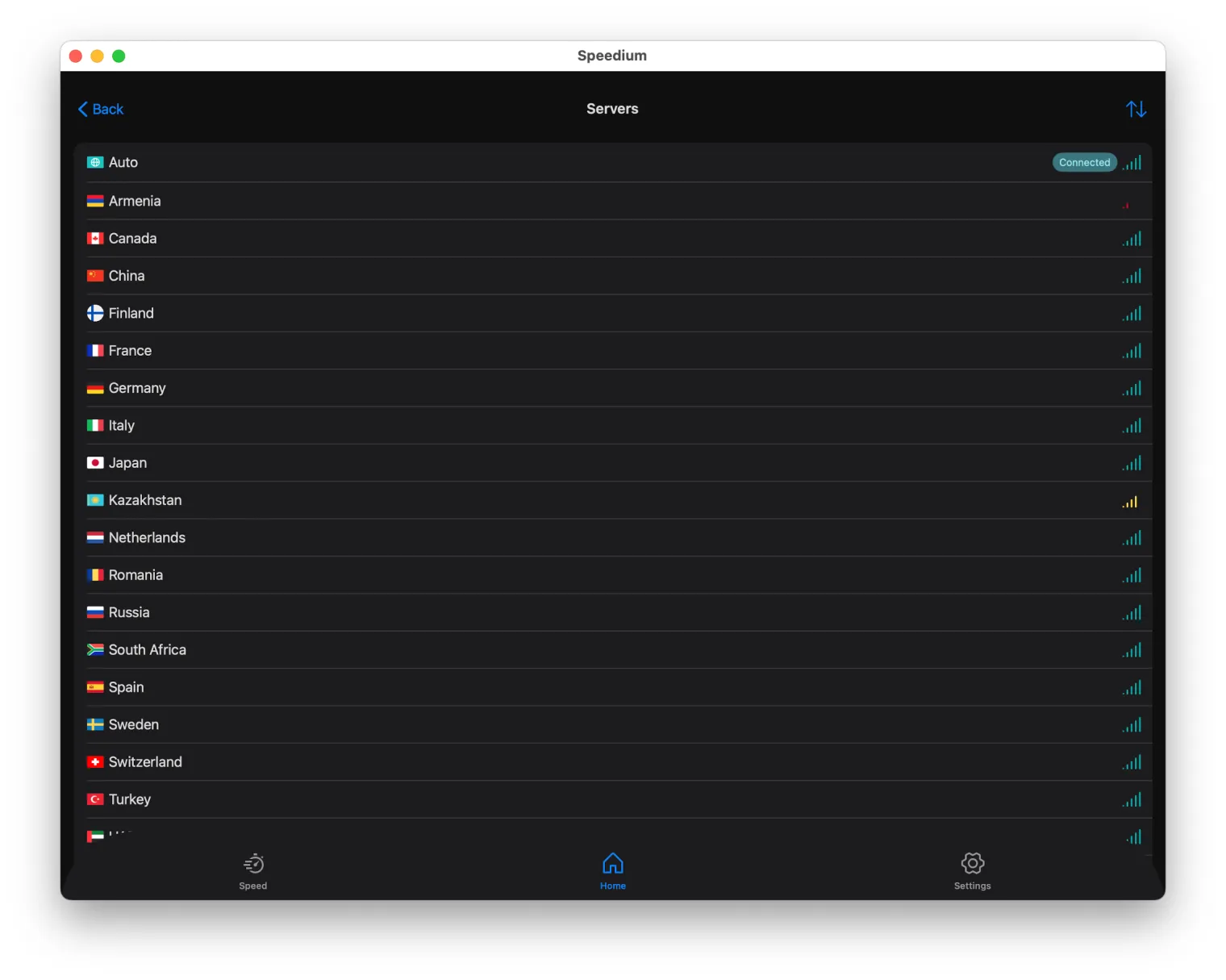
Pick a recommended server (Speedium selects a fast one automatically) or choose a specific country, then click Connect. Within a second or two you'll see the VPN icon appear in your menu bar, confirming you're protected.
Remember: this is the same account you use on iPhone and iPad — there's nothing to re-purchase. Why we recommend the app over manual setup: automatic configuration, a built-in kill switch, one-tap server switching, and automatic updates so your protection stays current without any effort.
Method 2: Manual VPN Setup on macOS via System Settings
You can also configure a VPN by hand using the built-in macOS client. Most Speedium users never need this — the app does it all — but it's here for completeness, and it's the right method if you were handed a raw configuration profile (for example, by an employer).
Open System Settings > Network
Click the Apple menu > System Settings, then select Network in the sidebar. (On older macOS, that's System Preferences > Network.)
Add a VPN configuration
Click the ⋯ (more) button near the interface list and choose Add VPN Configuration. Pick the VPN type your provider uses — typically IKEv2, L2TP over IPSec, or Cisco IPSec.
Enter the connection details
Fill in the fields your provider gave you:
- - Display Name — any label you like (e.g. "Work VPN")
- - Server Address — the hostname or IP of the VPN server
- - Remote ID / Local ID — as specified by your provider
- - Authentication — a username and password, or a certificate
Connect and verify
Click Create / Save, then toggle the connection on. When the status reads Connected, you're up.
When does manual make sense? Really only for a corporate or self-hosted VPN, or a provider that hands you raw config profiles instead of an app. The tradeoffs are real: no kill switch, no easy server switching (each server is a separate configuration you build by hand), manual updates, and more room for error. For a consumer VPN, the app is simply the better tool.
One App for iPhone, iPad and Mac — Sign In Once, Use Everywhere
This is where Speedium differs from a generic cross-platform VPN. A single Speedium account and one universal app cover your entire Apple ecosystem — iPhone, iPad and Mac.
If you already use Speedium on your iPhone (see our VPN on iPhone in Turkey guide) or iPad, setting it up on your Mac is barely "setup" at all: install from the App Store and sign in with the same account. Your subscription, preferences and settings come with you — nothing to buy again, nothing to reconfigure.
Can you use the same account on all three at once? Yes. Speedium supports simultaneous connections across your Apple devices, so your iPhone, iPad and Mac can all be protected at the same time under one login.
And connecting on your Mac doesn't disturb your other devices. Each device runs its own independent tunnel — turning on the VPN on your Mac won't kick your phone offline or drop your iPad's connection. They coexist happily. That Apple-first, sign-in-once experience is the differentiator versus generic tutorials that treat every platform as a separate chore.
Try It Free for 7 Days — No Credit Card, No Apple Pay, No Auto-Billing
Speedium's trial is genuinely risk-free, and it's worth being specific about what that means:
- - 7 full days free, and you can start the trial on any Apple device — iPhone, iPad or Mac.
- - No credit card required to begin.
- - No Apple Pay, and no payment method of any kind on file.
- - No auto-billing. The trial does not silently convert into a paid subscription when the week ends.
You test Speedium across your iPhone, iPad and Mac, and then you decide whether to subscribe. Compare that with the typical "free trial" that demands your card up front and quietly charges you the moment the clock runs out. With Speedium there's nothing to cancel in a panic — because there's nothing on file to charge.
Choosing a Server and Changing Your VPN Region on Mac
Switching your VPN region in the app takes just a couple of clicks:
- 1. Open the server list in the Speedium app.
- 2. Pick a country or city.
- 3. Click Connect.
Changing location while already connected? Just select a new server — the app reconnects to it automatically, tearing down the old tunnel and building the new one for you. You don't have to disconnect first.
A few practical tips:
- - For speed, choose a server geographically near you — shorter distance usually means lower latency.
- - For regional access, pick the specific country you need.
- - If the menu bar quick-switch is available, you can hop between recent servers without even opening the main window.
By contrast, the manual macOS method requires building a whole new configuration for every server you want to use — another reason the app is far easier for day-to-day switching.
Troubleshooting: VPN Won't Connect, Drops, or Kill Switch Issues
Most VPN hiccups on a Mac have quick fixes. Here's how to work through the common ones.
VPN won't connect
Start with the basics: confirm your internet works without the VPN. Then, in the Speedium app, sign out and back in, and make sure the app is updated to the latest version. If macOS previously blocked the configuration, go to System Settings > Network and re-allow the VPN configuration, authenticating as admin. Still stuck? Try a different server or protocol — occasionally a single location or network is the culprit, not the app.
Connection keeps dropping
Frequent drops usually trace back to the network or the server. Switch to a nearby or less-loaded server, check that your Wi-Fi is stable (weak signal drops tunnels), and disable any conflicting network tools — other VPNs, aggressive firewalls, or "network optimizer" utilities can fight for the same connection.
Kill switch and leak protection
A kill switch blocks all internet traffic if the VPN tunnel unexpectedly drops, so your real IP and data never leak during the gap. Enable it in the Speedium app's settings. This is a key reason to prefer the app: the manual macOS configuration has no kill switch at all — if that tunnel drops, your traffic silently falls back to the open connection.
If none of this helps, confirm the VPN configuration is allowed and that you authenticated as an administrator when adding it. When all else fails, reinstall the app or reach out to support — permission and profile issues are usually resolved in one message.
Managing Your VPN: Sync Across Apple Devices, Uninstall, and Cancel the Trial
Sync across your Apple devices
Keeping everything in step is simple: sign in on each Apple device with the same Speedium account. Your subscription and preferences follow your login, so your iPhone, iPad and Mac stay aligned.
Cancel the trial or subscription
Because no card is on file during the trial, nothing auto-charges — the trial simply ends, and you're never billed by surprise. If you later subscribe through the App Store, you manage it like any Apple subscription: open System Settings > [your name] > Media & Purchases > Subscriptions (or Apple ID > Subscriptions on iPhone/iPad) and cancel before the renewal date.
Completely remove the VPN configuration from your Mac
Two steps for a truly clean removal:
- 1. Uninstall the app — drag Speedium from Applications to the Trash, or delete it from Launchpad.
- 2. Remove the network config — go to System Settings > Network, select the VPN, and choose Remove Configuration.
Important: removing the app doesn't always remove the network configuration. Do both steps so no leftover VPN profile remains on your Mac.
Manual vs App: Which Mac VPN Setup Is Right for You?
Here's the honest side-by-side:
| Factor | Speedium App | Manual macOS Setup |
|---|---|---|
| Setup time | Under 2 minutes | 10+ minutes, error-prone |
| Ease | Install, sign in, connect | Enter server, IDs, auth by hand |
| Server switching | One click / menu bar | Build a new config per server |
| Kill switch | Yes, built in | None |
| Auto-updates | Automatic | Manual |
| Security defaults | Secure out of the box | You configure everything |
| Maintenance | Handled for you | Ongoing, manual |
| Cross-Apple-device | Same account everywhere | Per-device, per-config |
For almost every user, the app wins: it's easier, ships with safer defaults, gives you one-tap everything, and works across all your Apple devices under one login. Manual setup only makes sense for a corporate or self-hosted VPN, or when someone hands you a raw config profile.
To answer the question directly: the app-based setup is both easier and generally safer than hand-editing macOS Network settings — you get a kill switch, secure defaults and automatic updates you'd otherwise have to manage yourself. Our recommendation: use Method 1, and start with the free 7-day trial so it costs you nothing to see.
Frequently Asked Questions
Can I use the same VPN app and account on my iPhone, iPad and Mac at the same time?
Yes. Speedium is one universal app with one account covering all your Apple devices, and they can be connected simultaneously. Each device runs its own independent tunnel, so protecting your Mac and your iPhone at once is no problem.
Do I need a credit card or Apple Pay to start the free trial?
No. The 7-day trial requires no credit card and no Apple Pay. Just download the app, sign in, and start — no payment details of any kind.
Will I be charged automatically when the 7-day trial ends?
No. There's no auto-billing. With no payment method on file, the trial can't silently convert into a paid plan. If you want to keep Speedium, you actively choose to subscribe afterward.
Does macOS have a VPN built in, or do I need an app?
macOS includes a built-in VPN client for manual configurations, but no bundled VPN service — no servers, no encryption of its own. You still need a provider. The Speedium app is the easiest way to get everything in one place.
How do I cancel before the trial ends so I'm not billed?
Since no card is required, nothing auto-charges — the trial just ends. If you later subscribed through the App Store, open Apple ID > Subscriptions and cancel before the renewal date.
How do I set up the VPN on my Mac if I already use it on my iPhone?
Install Speedium from the Mac App Store and sign in with the same account. Your subscription and settings carry over automatically — there's no re-purchase and no reconfiguration.
Is the app-based setup safer or easier than the manual macOS Network configuration?
Both. The app gives you automatic configuration, secure defaults, a kill switch, and one-tap server switching. Manual setup means entering everything by hand with no kill switch and more chances for mistakes.
How do I change my Mac's VPN server location?
Open the server list in the app, pick a country or city, and click Connect. Switching regions takes a couple of clicks, and the app reconnects to the new server automatically.
What happens to my other Apple devices when I connect on my Mac?
Nothing is disrupted. Each device maintains its own independent VPN connection, so connecting on your Mac doesn't disconnect your iPhone or iPad.
How do I completely remove the VPN configuration from my Mac?
First uninstall the app (drag it to the Trash). Then go to System Settings > Network, select the VPN, and choose Remove Configuration so no leftover profile remains.
Set Up Speedium on Your Mac in Minutes
The fastest way to protect your Mac is the Speedium app from the Mac App Store: install it, sign in, and click Connect — you're done in under two minutes. It's the same account you use on your iPhone and iPad, so your whole Apple ecosystem is covered by a single login.
And there's no reason not to try it: the 7-day free trial needs no credit card, no Apple Pay, and has no auto-billing. Test it across your Apple devices, then decide.
Download Speedium from the Mac App Store and start your free trial today.